
Tech
[Windows] When Everything Search Misses Your Files
Here is what to check when Everything, the file search application, refuses to list the file you are looking for. Sometimes a simple oversight is all that prevents it from appearing.
Note
This article was initially translated with GPT-5.6 and then reviewed and edited by the author.
Everything is convenient, isn’t it?

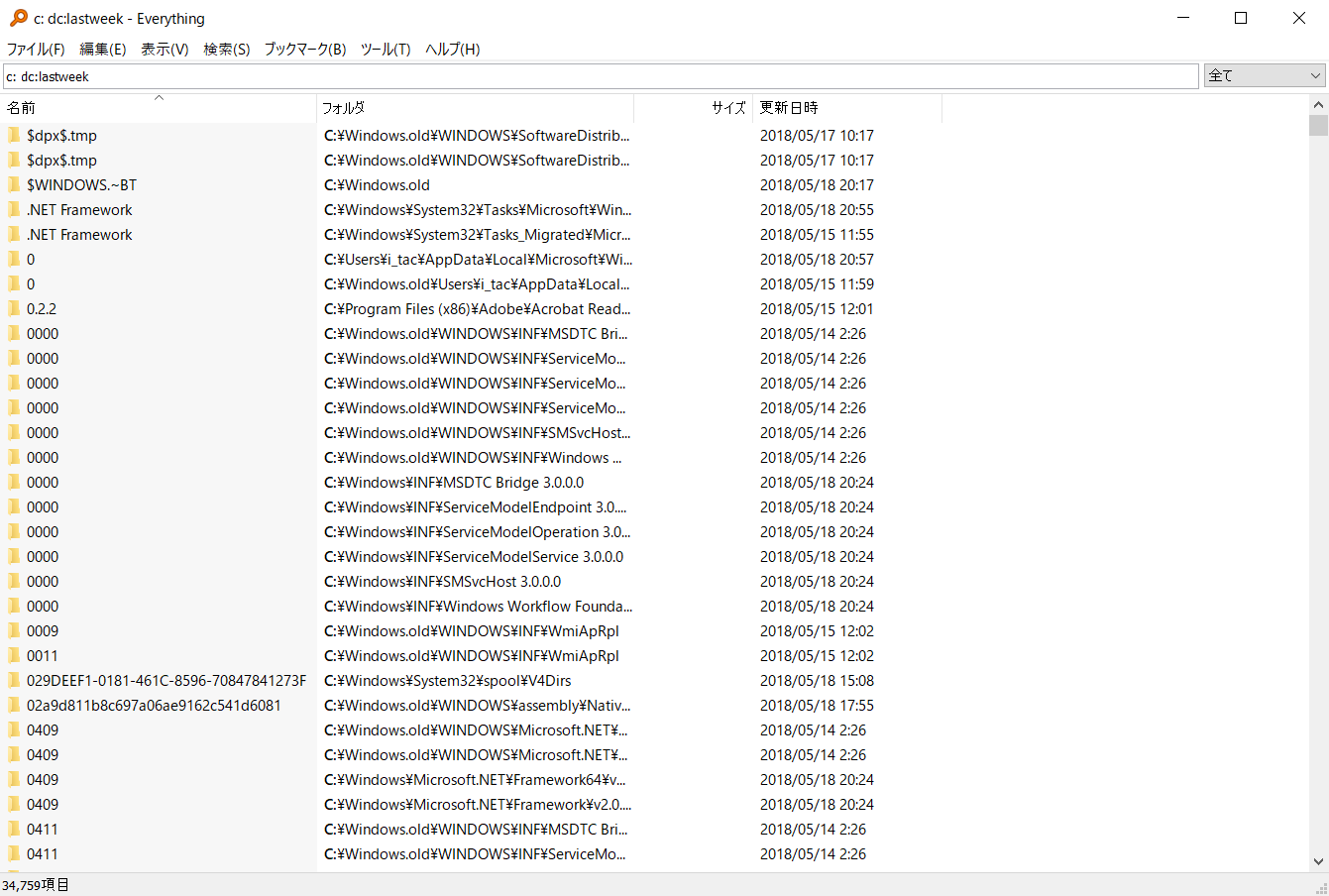
However, sometimes the file you are looking for does not appear because of an unexpected oversight.
There are not many things to check, so let’s go through them.
Did you specify the correct folders?
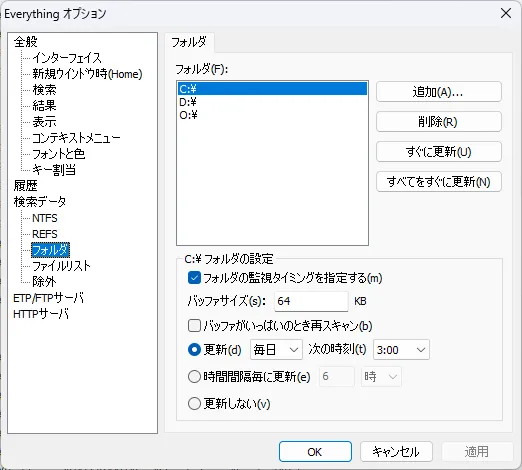
Open the settings and check whether the folders you want to search have been specified correctly. It is surprisingly common to miss this.
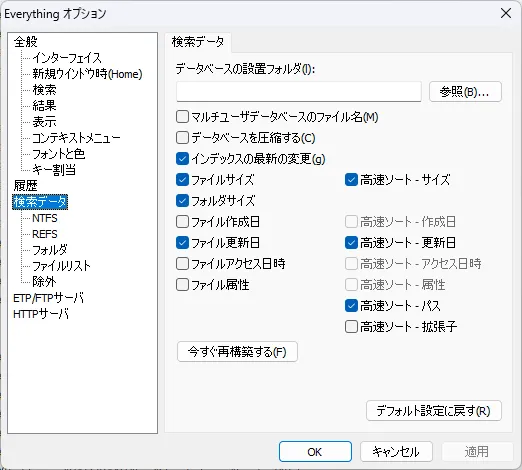
If a folder was missing, use “Rebuild” from here.
Did you exclude it?
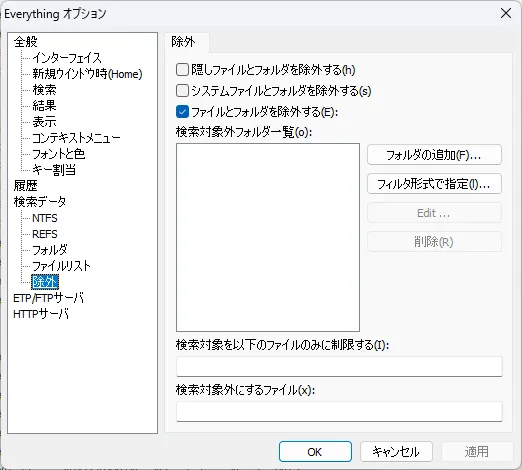
Searching becomes considerably more difficult if something like C:/ appears in the list of hidden files, hidden folders, or excluded folders.
Be careful.
After changing these settings, you should probably run “Rebuild” again. That is just my intuition, though.
If it still does not appear
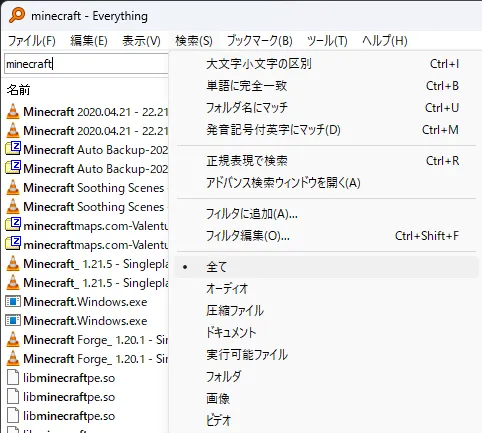
Everything does not warn you when a filter prevents a file from appearing in the search results.
There are many cases where the file you want will not appear unless the filter is set to “Everything.”
The same problem can occur if “Search with regular expressions” is enabled even though you do not know regular expressions, or if exact-match searching is enabled even though your search text is not an exact match.
These settings are surprisingly easy to overlook, so be careful.